Handle a request
Click a card to open it. The detail view has three areas side by side, with the request information in the header and a coloured band showing the current status.
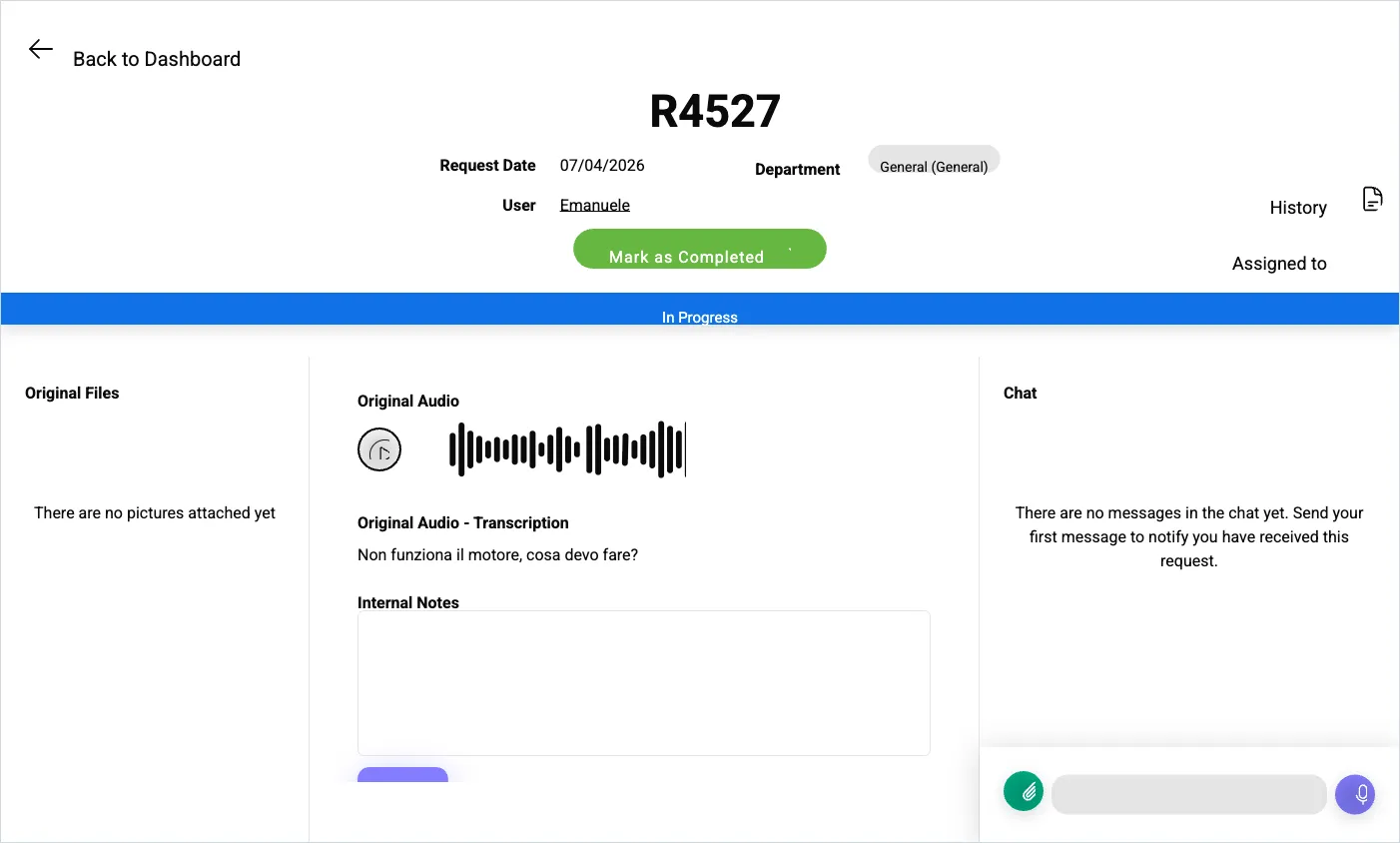
The header
Section titled “The header”Back to Dashboard returns to the board. Alongside it: Request Date, User (who sent it) and Department.
Controls:
- Mark as Completed — closes the request.
- Assigned to — hands it to a team member. See assigning and departments.
- History — copies the request data to the clipboard, for pasting elsewhere.
Centre — the content
Section titled “Centre — the content”- Original Audio — the voice note. Play it whenever the transcription is ambiguous; it carries tone and background noise the text doesn’t.
- Original Audio - Transcription — the AI transcription.
- Internal Notes — for your team only. The requester never sees these. Save with the update button.
Left — Original Files
Section titled “Left — Original Files”Photos and files the requester attached.
Right — Chat
Section titled “Right — Chat”The conversation with the requester. The first reply is what moves the request to In Progress and notifies them that someone has it. You can send text, attachments and voice messages.
A working order that holds up
Section titled “A working order that holds up”- Open the request from New; play the audio or read the transcription.
- Reply in chat, even just to confirm receipt. Status becomes In Progress.
- Assign it and set the department if it isn’t yours to finish.
- Put anything confidential in Internal Notes, not in the chat.
- If it’s blocked, move it to Follow Up rather than leaving it In Progress.
- Resolve, then Mark as Completed, then archive. See complete and archive.
SaidText S.r.l. - VAT IT03035200348