Send a request
You send a request by speaking. There is no form to type.
Record
Section titled “Record”- Tap the microphone button at the bottom of the screen.
- Say what you need. Be specific about where you are and what the problem is — the transcription is what the back office reads first.
- While recording you can discard the recording, lock the button so you don’t have to hold it, or confirm when you’re done.
Fill in the fields
Section titled “Fill in the fields”When the recording ends, the send screen appears.
| Field | What to put in it |
|---|---|
| Name Request (optional) | A short title, e.g. low pressure pump. Without one, the request shows only its code. |
| Notes (optional) | Anything easier written than said: a code, a number, a reference. |
| Provider | Who the request goes to. Further selectors narrow it to a department. |
| Add Attachments | Photos or files that show the problem. |
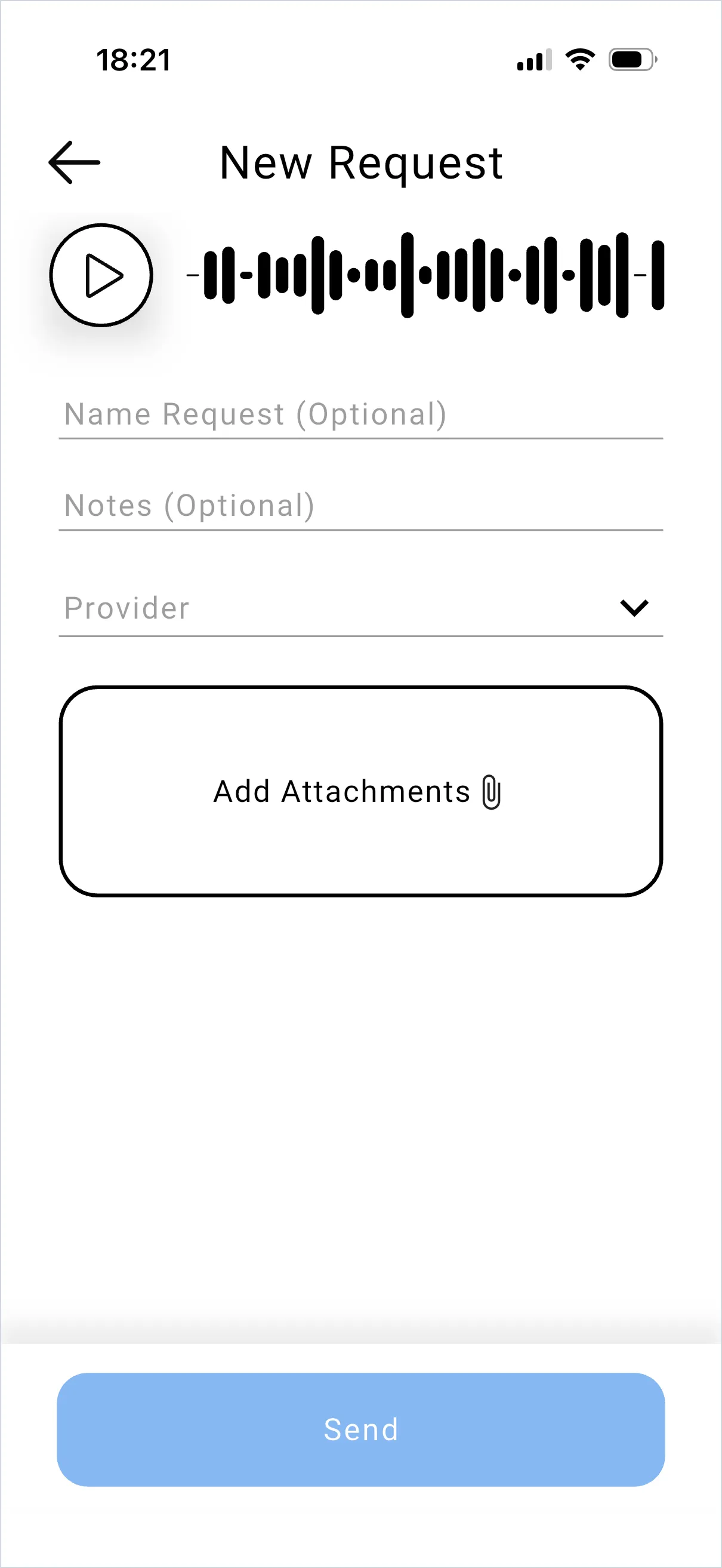
Tap Send. The request goes to the back office immediately and appears in your list with the status Sent.
From here, the request is out of your hands until someone takes it — see track a request.
If the transcription is wrong
Section titled “If the transcription is wrong”The text comes from your voice note, so noise, distance from the phone and heavy jargon all affect it. The back office can always play the original audio. If transcriptions are consistently unusable, see audio not transcribing.
SaidText S.r.l. - VAT IT03035200348